Whether you’re ready to tackle multiple languages at once or you want to try your hand at chess, math, or music, it’s easy to start a new course on Duolingo! Here’s how.

How to start a new course

From your path, tap the flag of the course you’re currently in.
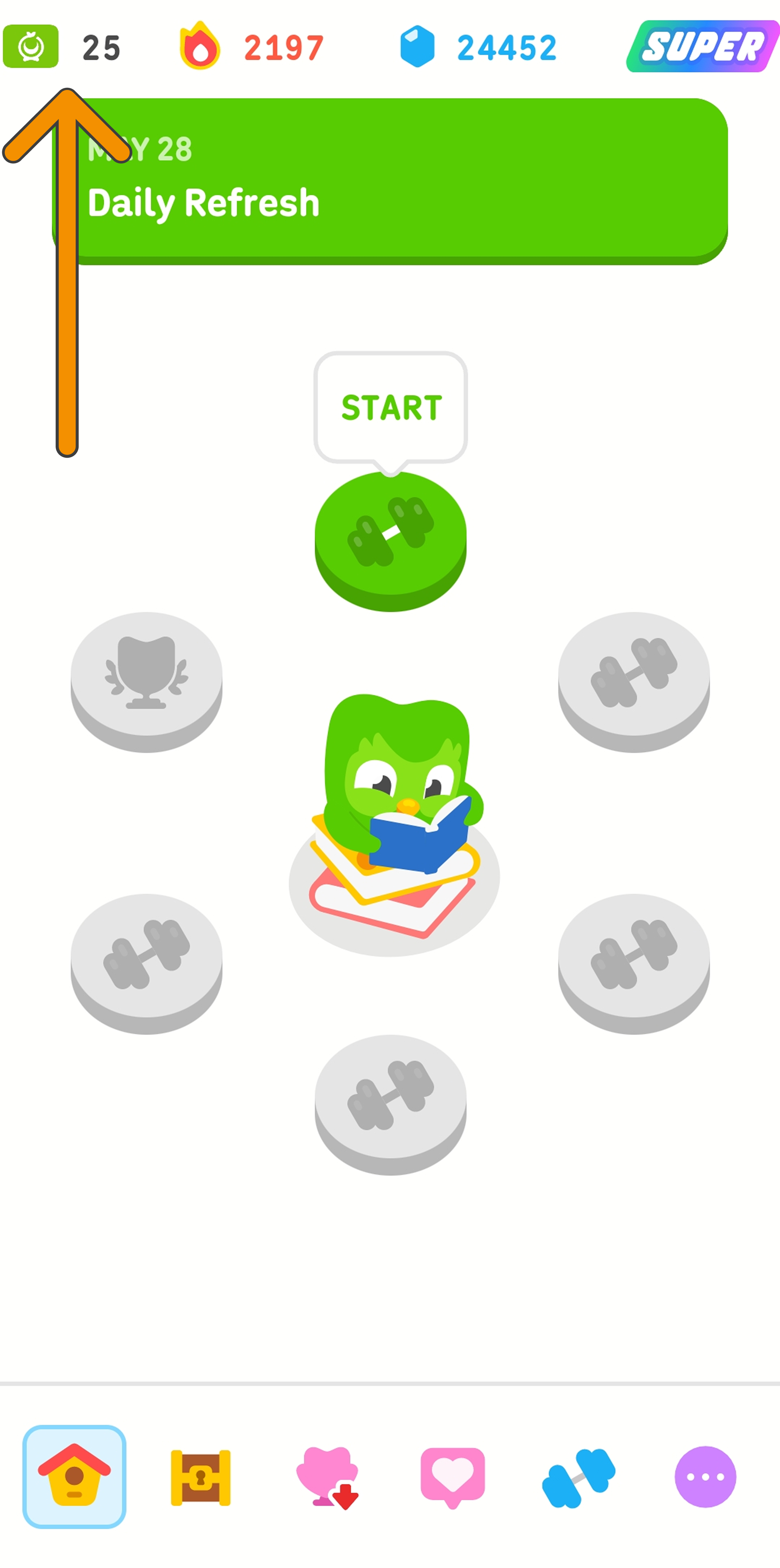

Screenshot of the learning path for the Duolingo Arabic course. An orange arrow is pointing to the top left corner of the screen at the icon of the Arabic course.

Tap the rectangle with the plus sign in it to explore the full list of courses. If you want to try one of our new subjects, we suggest those right in the course selection menu.
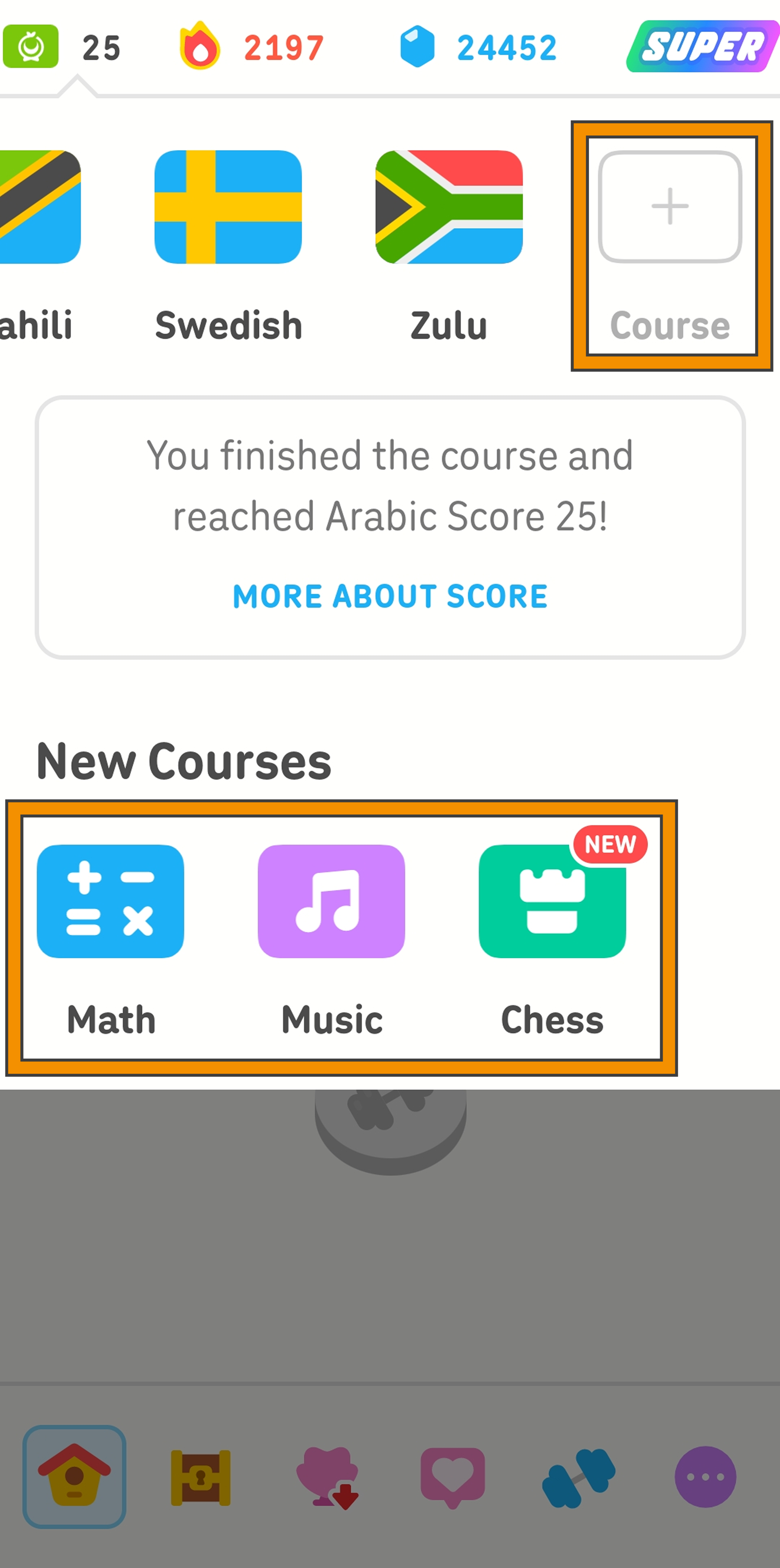

Screenshot showing the menu to add a new course on the Duoingo app. The user has the option to tap a blank rectangle labeled “Course” to start a new language course, or select from Math, Music, or Chess.

If you tap the plus sign, you’ll be taken to a full list of the courses we offer.
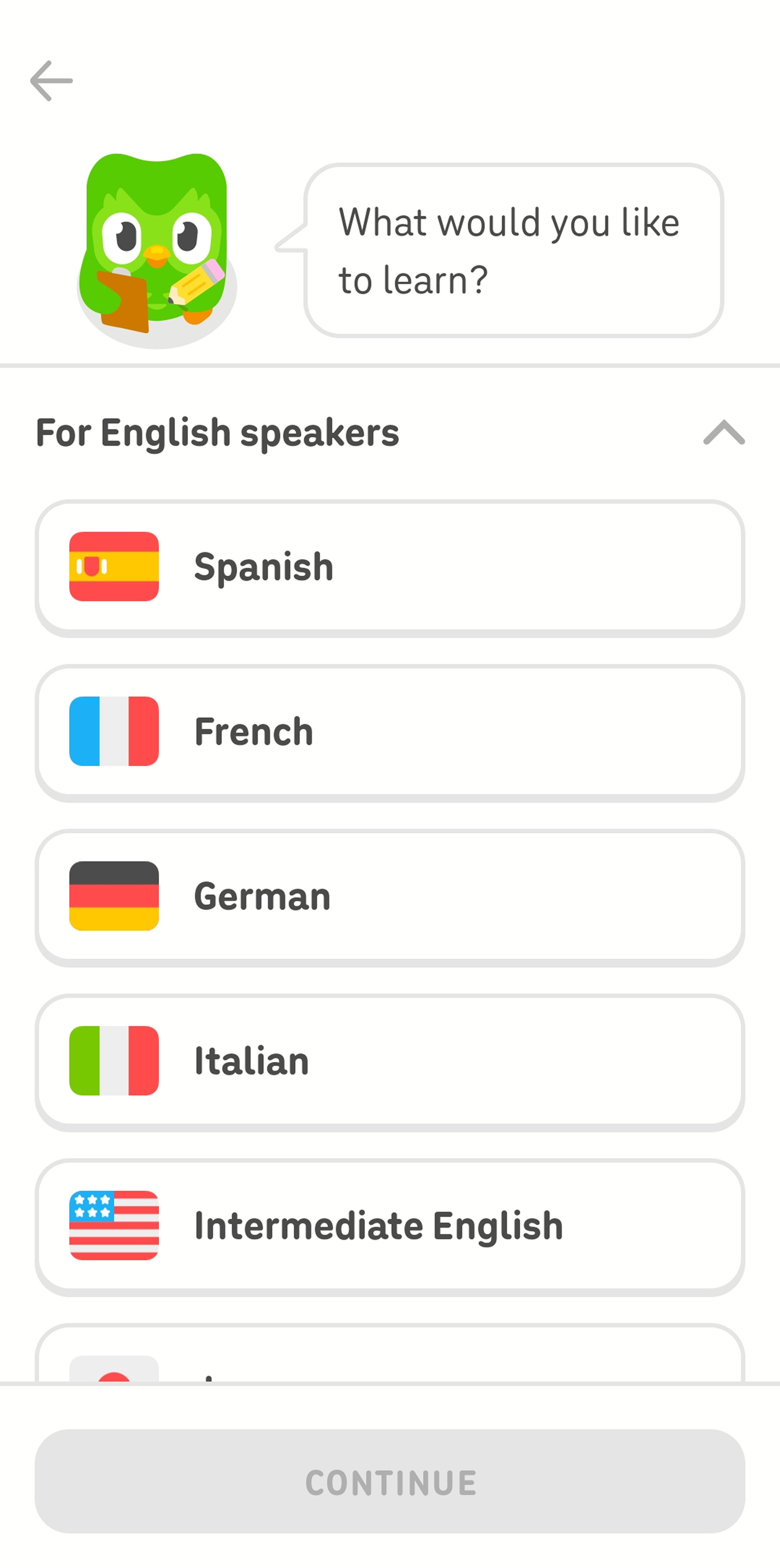

Screenshot of the Duolingo app. Duo the owl is asking “What would you like to learn?”, and several options for language courses are listed below.

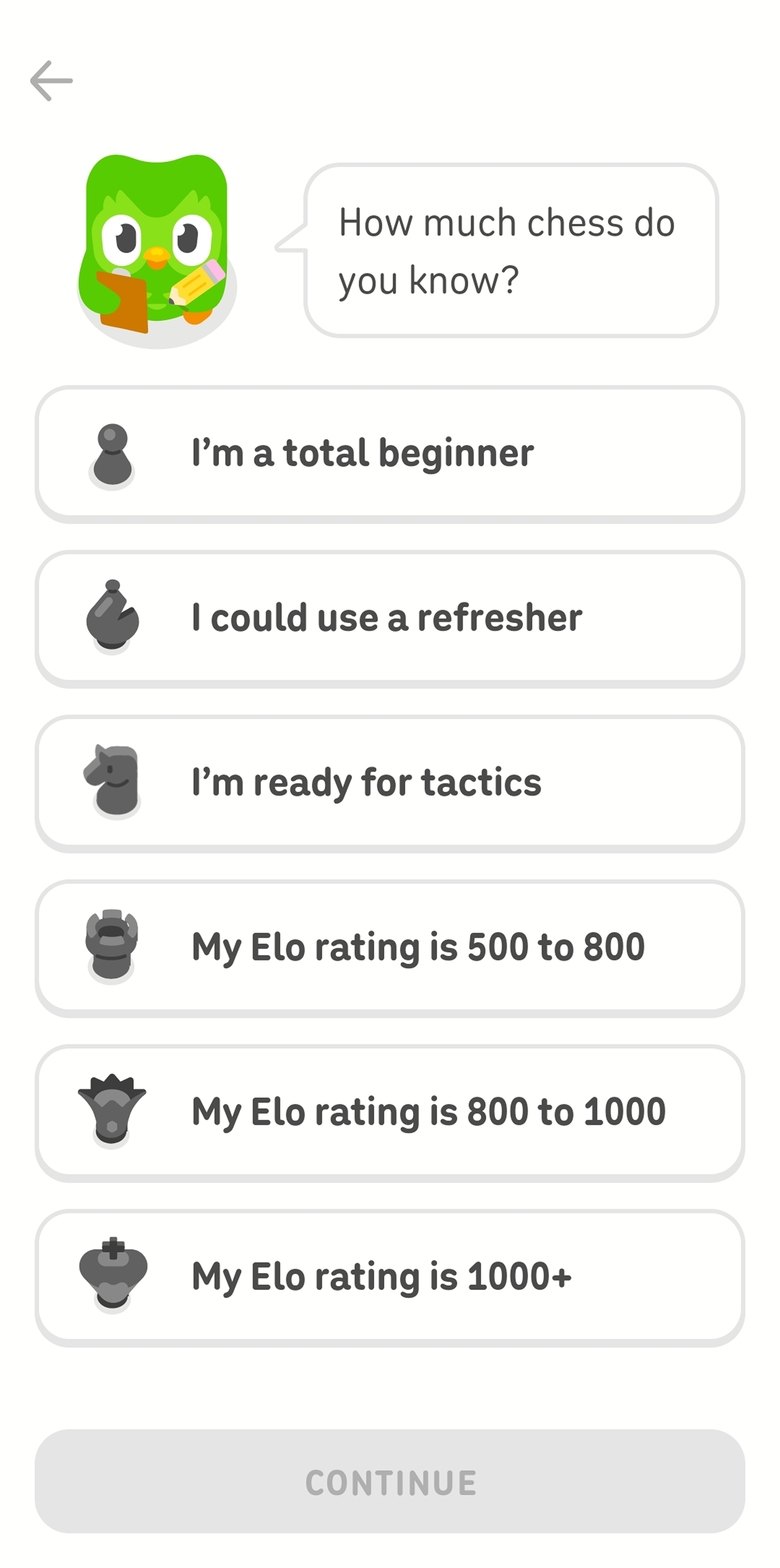
Choose your level. (It’s okay if you’re not sure—you can take a placement test or play a practice chess match with Oscar to find the right level for you.)
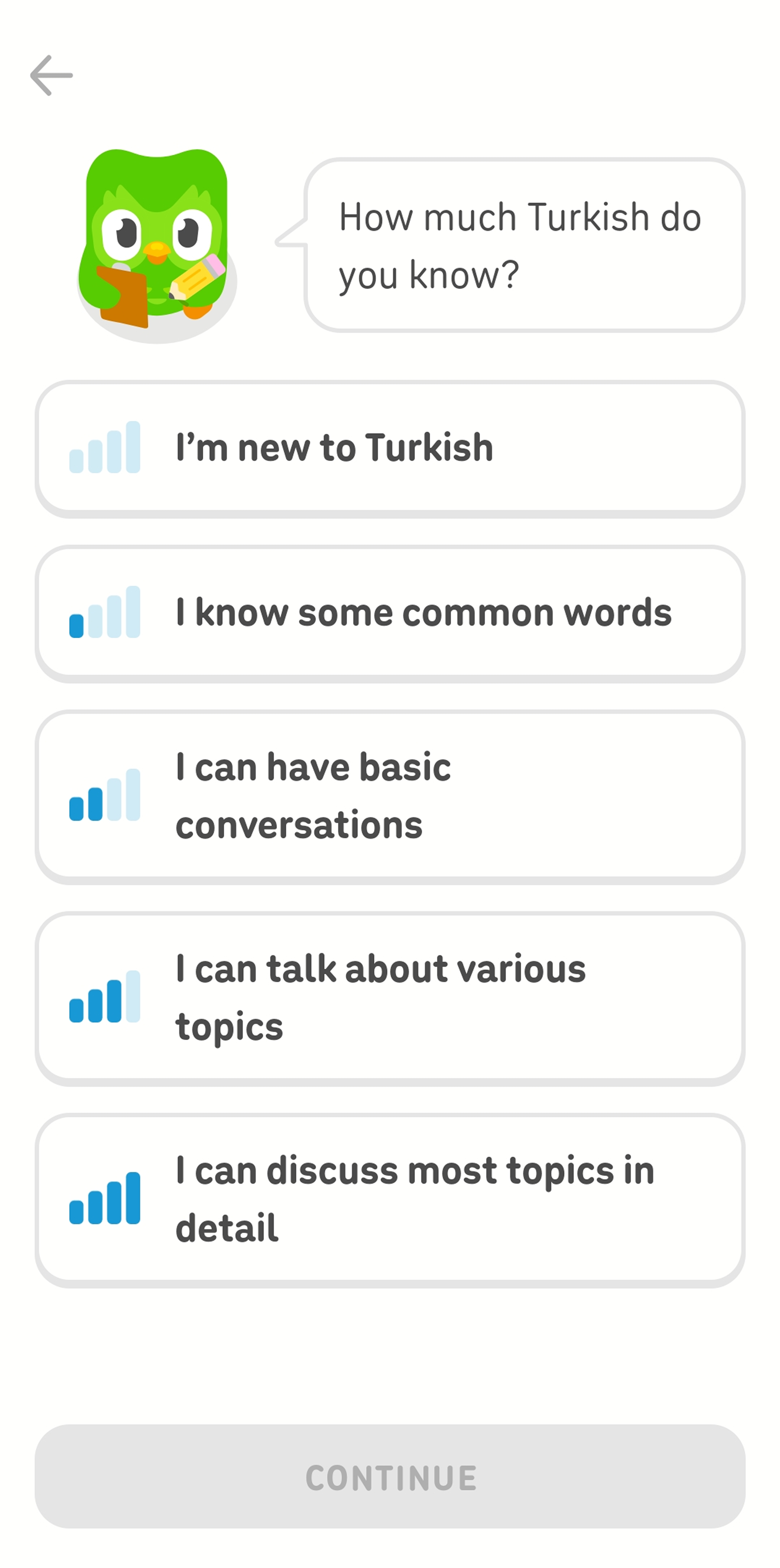
Screenshot of the Duolingo app after selecting a new language course. Duo the owl is asking the user “How much Turkish do you know?” and the user has five options that range from “I’m new to Turkish” to “I can discuss most topics in detail.” Screenshot of the Duolingo app after selecting the chess course. Duo the owl is asking the user “How much chess do you know?” and the user has six options that range from “I’m a total beginner” to “My Elo rating is 1000+.”

That’s it! Once you take the placement test (or start from the beginning), you’ll be taken to your first lesson.

Plus: Any lesson you complete—no matter what subject—counts towards your Duolingo streak 🔥 That means you’re free to mix it up as much as you want!

How to remove a course

Changed your mind? No problem! But note: This will permanently delete any progress you’ve made in that course.

To remove a course, tap the circle with 3 dots at the bottom of your screen, then tap “Profile.”
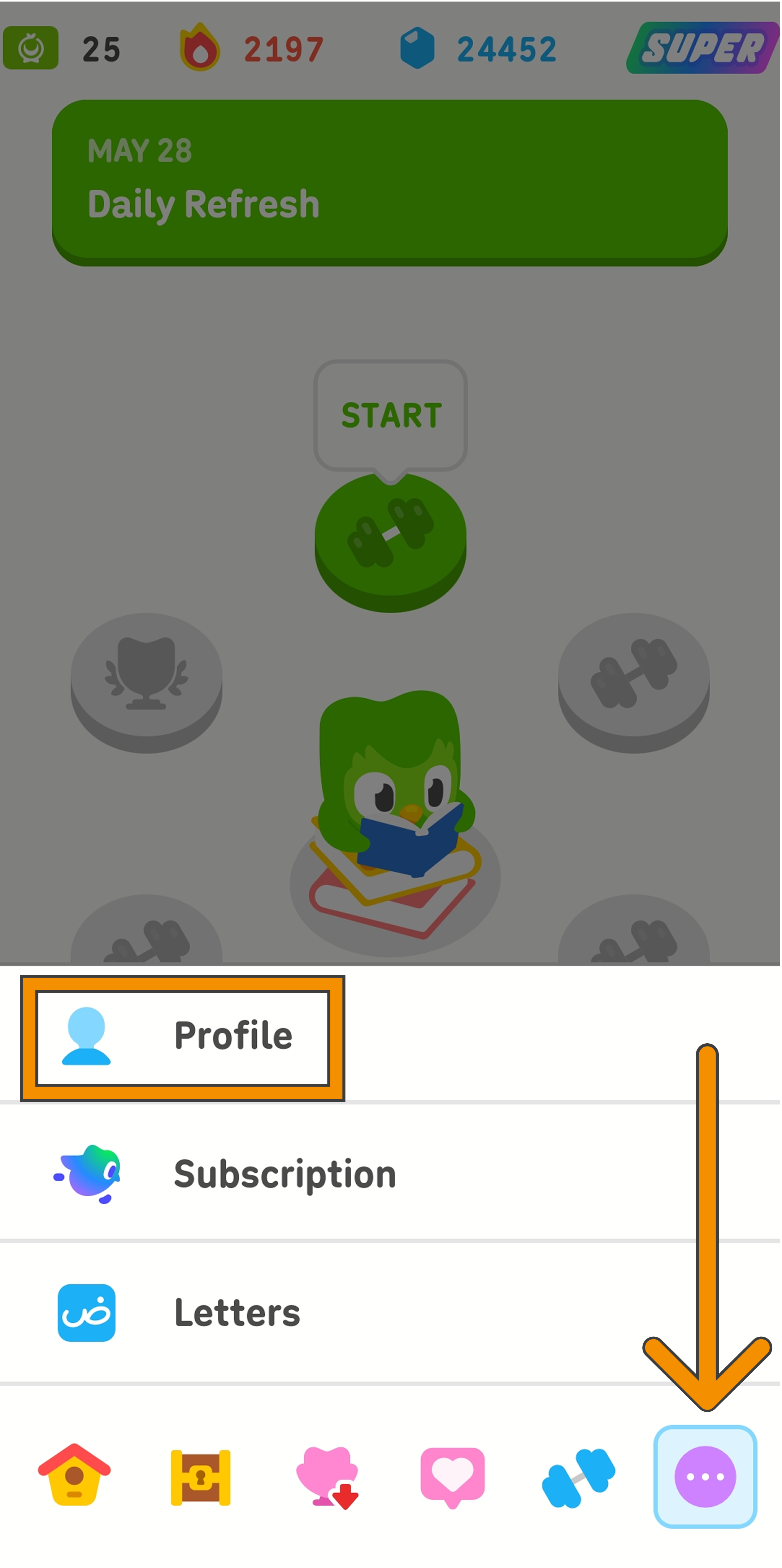

Screenshot of the learning path for the Duolingo Arabic course. The user has tapped on the icon with 3 dots and opened more options, which include “Profile,” “Subscription,” and “Letters.” There is an orange arrow pointing to the icon with 3 dots, and an orange rectangle highlighting the “Profile” option.

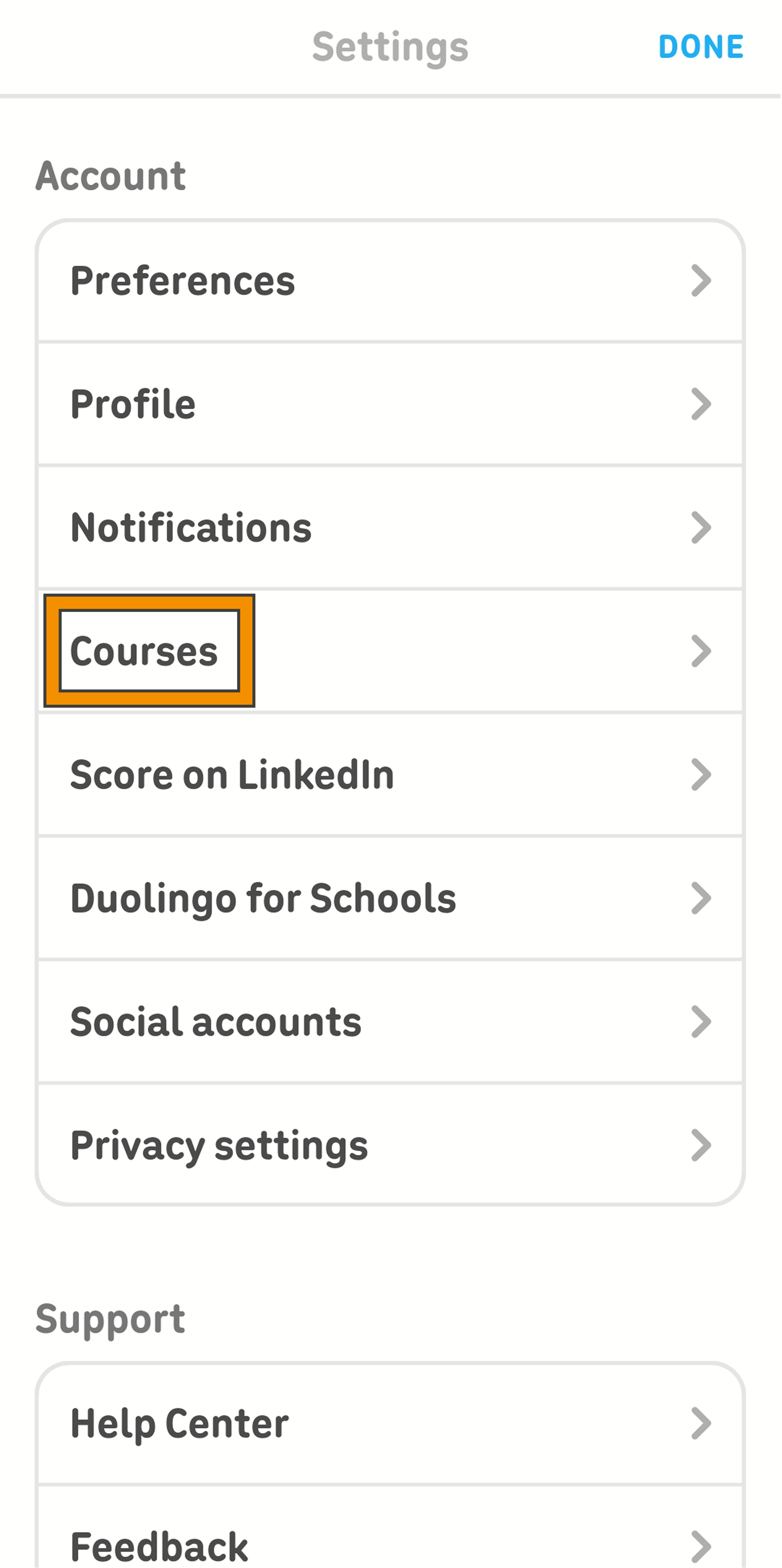
Tap the gear symbol in the top right corner to go to your settings, then tap “Courses.”
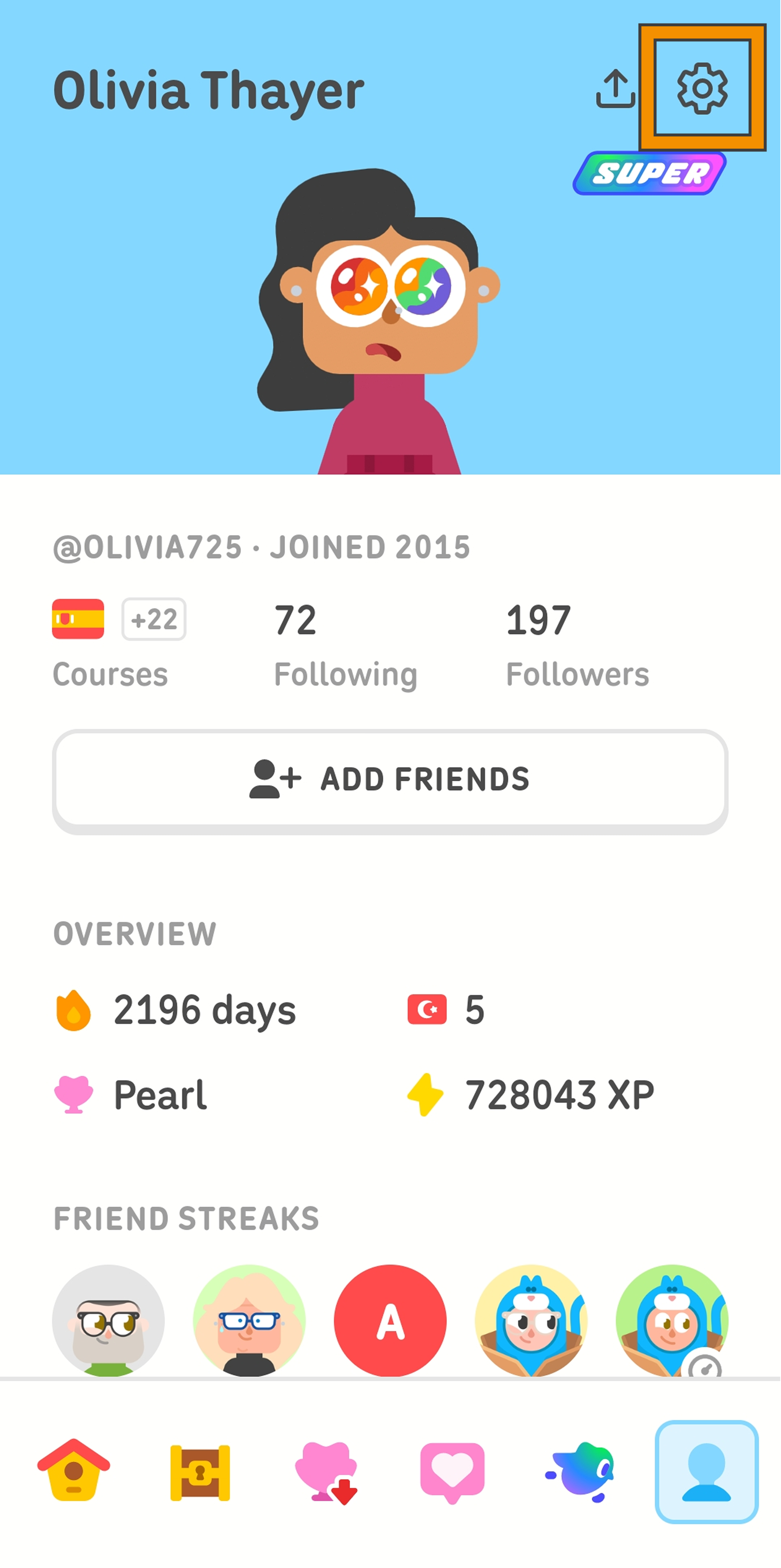
Screenshot of a Duolingo user’s profile. There is an orange square highlighting the gear symbol in the top right corner of the screen, indicating the option to open the settings menu. Screenshot of the Duolingo app’s settings menu. There is an orange rectangle highlighting the “Courses” category, indicating the option to manage the user’s courses in progress.

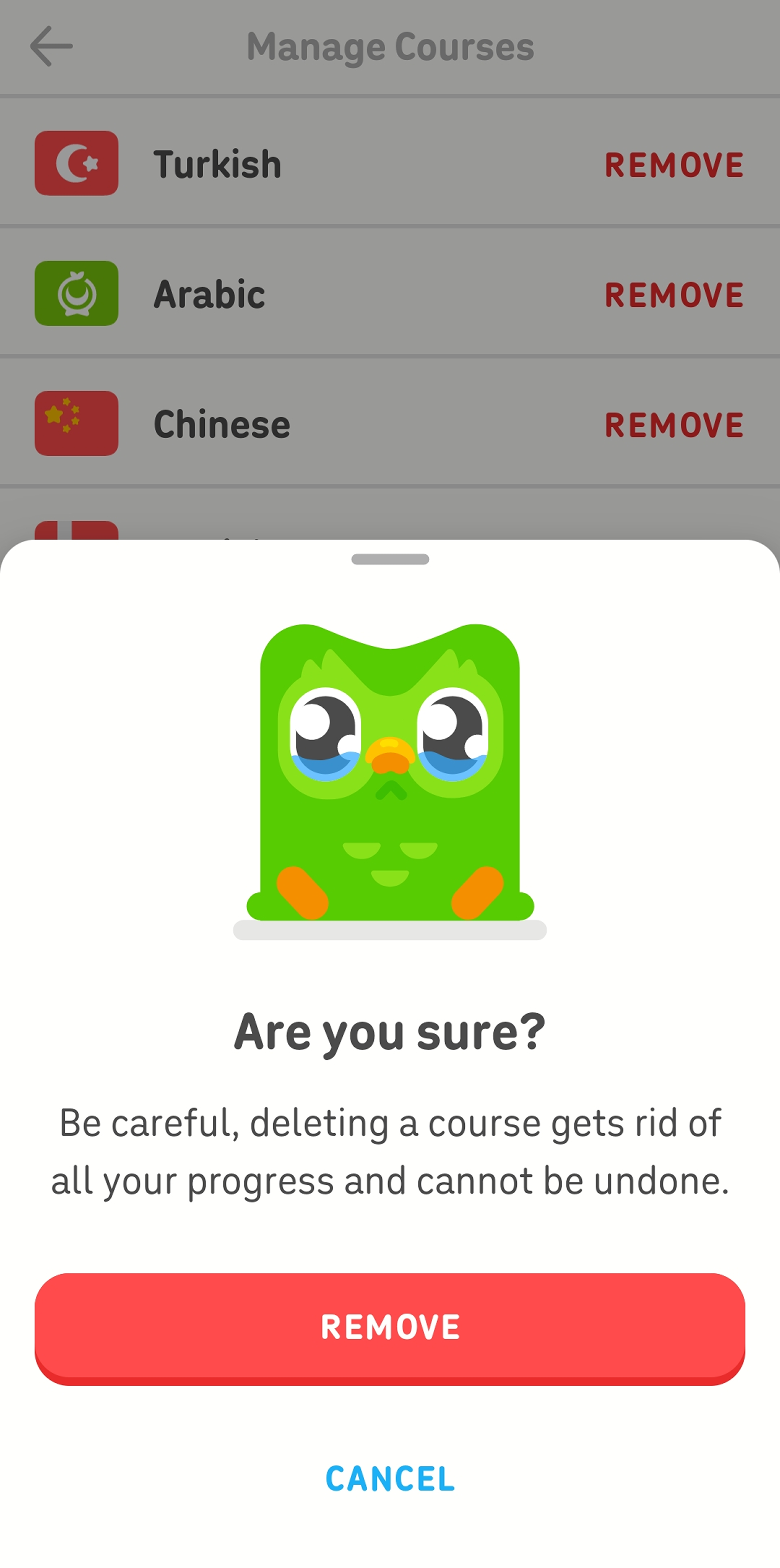
Tap the course you want to remove, then confirm it (but only if you’re really sure—this can’t be undone!).
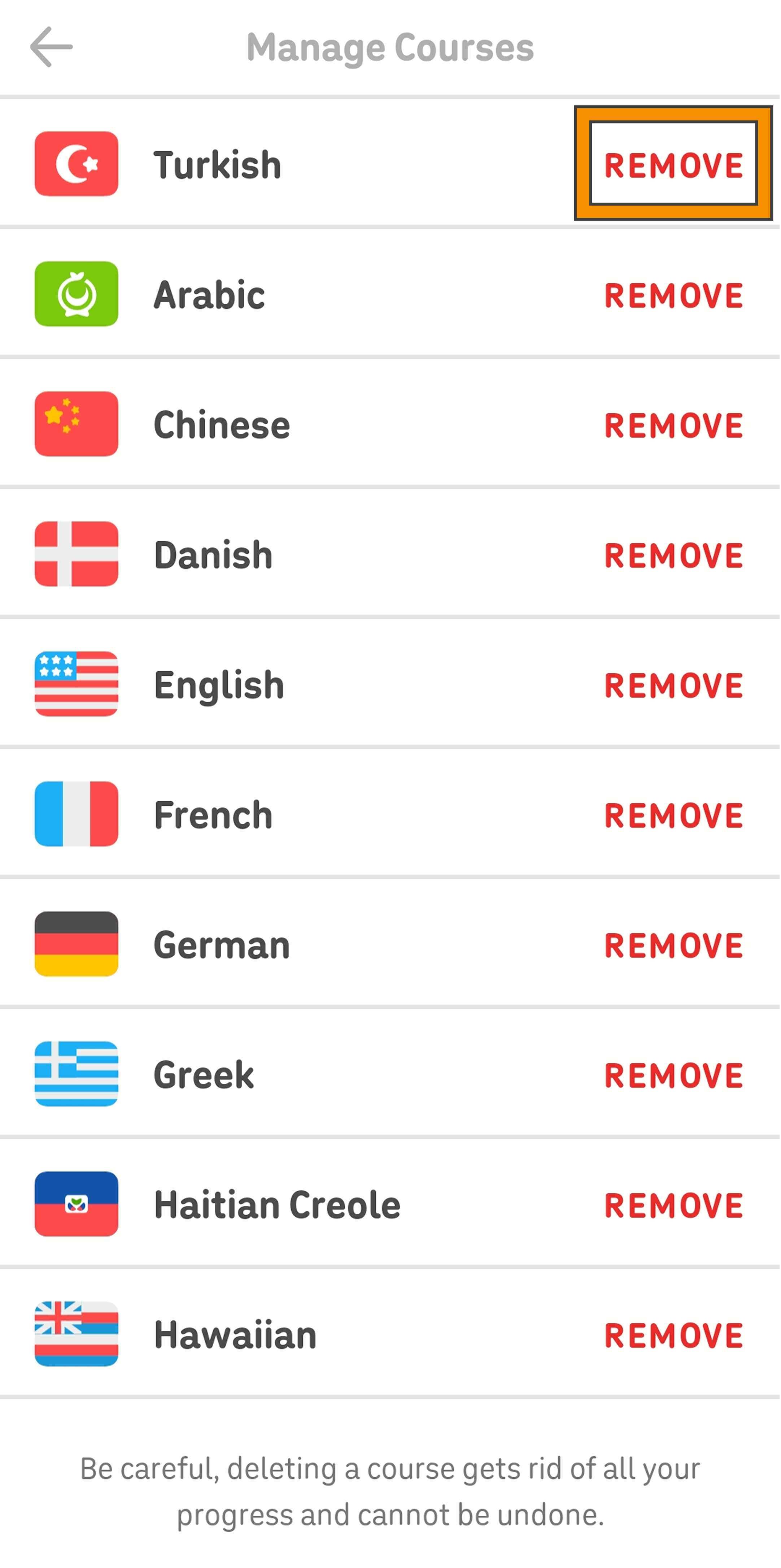
Screenshot of the “Manage Courses” screen in the Duolingo app. Each course in progress has the word “Remove” in red next to it, and a warning at the bottom states “Be careful, deleting a course gets rid of all your progress and cannot be undone.” Screenshot of the “Manage Courses” screen in the Duolingo app. A confirmation pop-up has an image of Duo the owl with tears in his eyes, and the text beneath him reads “Are you sure? Be careful, deleting a course gets rid of all your progress and cannot be undone.” The user has the option to tap “Remove” or “Cancel.”

The possibilities are endless!

Languages, math, music, and chess are all in one place, and all available for free! What are you learning next?